Price Plan Settings Help
Overview
Price Plan Settings allows you to define usage fees for your facility. Choose from 6 different plan types based on your needs and configure detailed pricing settings.

Key Features
- Choose from 6 different plan types
- Day-specific and time-specific pricing
- AI dynamic pricing (Hourly plan only)
- Tax rate and currency settings
- Choice of accepted payment methods (multiple selection)
- Override booking-related conditions (cancellation policy, advance booking window, etc.) on a per-plan basis
Input Fields
Basic Information
| Field | Description | Required |
|---|---|---|
| Plan Name | Display name for the plan (e.g., "Weekday Plan", "Weekend Plan") | Yes |
Plan Type Selection
Select the billing method for the plan. Cannot be changed once saved.
| Plan Type | Description | Use Cases |
|---|---|---|
| Hourly Billing Plan | Charges per minute based on usage time | Coworking, Sauna, Gym |
| Daily Flat Rate Plan | Fixed daily rate | Day-trip facilities, Accommodation |
| Fixed Time + Overtime Plan | Fixed fee up to a certain time, additional charges for overtime | Meeting rooms, Rental spaces |
| Accommodation Plan | Room rates based on check-in/out times | Hotels, Guest houses |
| Time Slot Booking Plan | Fixed rate for specified time slots | Event venues, Studios |
| One-Time Plan | Fixed fee for a single entry | Events, Penalty charges |
How Day-of-Week and Holiday Rates Are Chosen
To charge different rates on different days, enter rates in the plan's day-type tabs (or day checkboxes). Which tab applies is determined automatically, per date of use.
Priority order
When a single date belongs to more than one day type (for example, a Saturday that is also a public holiday), the higher entry in this list wins.
| Priority | Day type | Matches when |
|---|---|---|
| 1 (highest) | Holiday | The date is a public holiday in the facility's country |
| 2 | Day Before Holiday | The next day is a public holiday |
| 3 | Friday | The date is a Friday |
| 4 | Saturday | The date is a Saturday |
| 5 | Sunday | The date is a Sunday |
| 6 | Weekend | The date is a Saturday or Sunday |
| 7 | Weekday | The date is Monday–Friday |
Examples:
- A Saturday that is a public holiday → the Holiday rate applies, not the Saturday rate
- A Sunday whose following Monday is a public holiday → the Day Before Holiday rate applies, not the Sunday rate
- A Friday that is a day before a holiday → the Day Before Holiday rate applies, not the Friday rate
Holidays are detected automatically
Holiday detection uses the public holiday calendar UnlockOS maintains. You do not need to register a holiday calendar yourself, or mark individual reservations as falling on a holiday.
Important: Holiday detection reads the facility's "Country" setting. If a facility has no country configured, holidays are not detected and a holiday is treated as its ordinary day of the week (Friday / Saturday / Sunday / Weekday). Set the facility country in Facility Management before relying on Holiday or Day Before Holiday rates.
Which clock decides the day of week?
Day of week and holidays are resolved from the civil date in the facility's timezone. For a facility in Japan, a reservation starting between 00:00 and 09:00 JST is still classified under that day's correct day of week.
Day types available per plan type
The day types you can configure differ by plan type.
| Plan type | Available day types |
|---|---|
| Accommodation Plan | Weekday / Friday / Saturday / Sunday / Holiday / Day Before Holiday |
| Hourly Billing Plan | Basic rate / Weekend-Holiday rate (plus Weekday / Weekend / Holiday checkboxes per rate tier) |
| Daily Flat Rate Plan | Weekday / Weekend / Holiday |
| Fixed Time + Overtime Plan | Weekday / Weekend / Holiday |
| One-Time Plan | Weekday / Weekend / Holiday |
| Time Slot Booking Plan | Weekday / Weekend / Holiday (the Holiday tab applies only when at least one slot on it is enabled; if none is, the Weekday/Weekend tab is used as before — see details) |
If your facility has defined Special Dates & Seasons on the Settings → "Special Dates" tab, one tab per class (a per-minute rate row on the Hourly Billing Plan) appears in addition to the day types above. See the next section.
Special Date and Season Rates
When your facility has created date classes (High Season, Obon, …) under Special Dates & Seasons on the Settings → "Special Dates" tab, this plan editor gains an input per class.
| Plan type | How to enter the per-class rate |
|---|---|
| Accommodation / Daily Flat Rate / Fixed Time + Overtime / One-Time / Time Slot Booking Plan | A class tab is added to the right of the day-type tabs |
| Hourly Billing Plan | A per-minute rate row per class is added under "Special date / season rates" (no tab) |
Priority order (including special dates and seasons)
A special date or season sits above Holiday.
Special date/season (highest priority first) > Holiday > Day Before Holiday > Friday > Saturday > Sunday > Weekend > Weekday
Example: a Saturday inside a High Season period is priced with the High Season rate, not the Saturday rate.
Leave it empty and nothing changes
A plan that leaves a class's rate empty does not use that class. Those dates keep being priced by their day of week or holiday rate. Existing plans behave exactly as before unless you enter something.
What this cannot do
- Hourly rate tiers cannot vary by class. Only the basic per-minute rate can be overridden per class. To vary time-band rates during a season, split the plan (for example Regular Plan / High Season Plan) and switch which plan is published by hand. There is no automatic date-based plan switching.
- Ancillary charges cannot vary by class. Late check-out (extension) fee, early check-in fee, night pack and the daily maximum charge are single values for the whole plan.
See Special Dates & Seasons for the full setup steps, limitations and the effect on existing reservations.
Plan Type Detailed Settings
Hourly Billing Plan
Basic Rates
| Field | Description | Required |
|---|---|---|
| Basic Rate (per minute) | Rate per minute on weekdays | Yes |
| Weekend/Holiday Rate (per minute) | Rate per minute on weekends/holidays | No |
Holidays are detected automatically from the facility's country and are billed at the weekend rate (see How Day-of-Week and Holiday Rates Are Chosen). The day of week comes from the civil date in the facility's timezone, so a booking starting between 00:00 and 09:00 JST is billed under the correct day.
Minimum Booking Duration
| Field | Description | Required |
|---|---|---|
| Minimum Booking Duration | Shortest booking allowed per reservation (choose from 15/30/60/90/120 min). Also controls the booking grid's time granularity. | No |
Maximum booking duration defaults to the value on the Reservation Config, not the plan form. Because check-in does not cap actual stay length, placing this control on plans would mislead operators into thinking it limits real usage. By default it is a booking-time constraint only and is therefore co-located with the other booking-window settings (
reservation_configs.max_booking_duration_minutes). To change it for just this plan, override it from Booking Terms (Per-Plan Overrides) further down the page.
AI Dynamic Pricing
When enabled, AI predicts demand and automatically sets optimal prices.
| Field | Description |
|---|---|
| AI Dynamic Pricing | Toggle ON/OFF |
Time-Specific Rate Settings (Rate Tiers)
Set different rates for different time periods.
| Field | Description |
|---|---|
| Start Time | Start time for the rate tier |
| End Time | End time for the rate tier |
| Rate (per minute) | Rate per minute for this time period |
| Weekday | Whether to apply on weekdays |
| Weekend | Whether to apply on weekends |
| Holiday | Whether to apply on holidays |
The "Holiday" checkbox is driven by automatic holiday detection based on the facility's country. On a public holiday, tiers marked Holiday apply instead of tiers marked Weekday.
Night Pack
Set fixed rates for late-night hours.
| Field | Description |
|---|---|
| Start Time (hour) | Night pack start time (e.g., 22) |
| End Time (hour) | Night pack end time (e.g., 6) |
| Night Pack Fee | Fixed fee for night pack |
| Rate during Night Pack (per minute) | Per-minute charge during night pack (optional) |
Your prices may change. Until now, a configured night pack was never applied by the billing calculation — the simulation panel did reflect it, so the simulated total and the actual charge disagreed. The night pack is now actually applied. Plans that already have a night pack configured will bill differently for late-night hours. Re-check the start/end hours, pack fee and per-minute rate in the simulation panel.
Maximum Daily Fee
| Field | Description |
|---|---|
| Maximum Daily Fee | Maximum amount per day. No limit if not set |
How the day boundary is decided: The cap resets on the civil date in the facility's timezone. It previously reset on server time (UTC), which for a JST facility effectively moved the boundary to 09:00 JST — an 08:00–16:00 booking could straddle two "days" and be capped twice (for example, ¥2,800 charged against an advertised ¥1,400 cap). It is now applied correctly, once per facility day (#3027).
Daily Flat Rate Plan
Configurable per day type (Weekday/Weekend/Holiday tabs). Holidays are detected automatically from the facility's country and billed with the Holiday tab's rate. The day of week comes from the civil date in the facility's timezone.
| Field | Description | Required |
|---|---|---|
| Enable this setting | Whether to apply plan for this day type | - |
| Daily Fee | Fixed rate per day | Yes |
| Date Reset Time | Time when the date resets | No |
Fixed Time + Overtime Plan
Configurable per day type (Weekday/Weekend/Holiday tabs). Holidays are detected automatically from the facility's country and billed with the Holiday tab's rate. The day of week comes from the civil date in the facility's timezone.
| Field | Description | Required |
|---|---|---|
| Enable this setting | Whether to apply plan for this day type | - |
| Flat Fee | Fee within fixed time | Yes |
| Flat Duration (minutes) | Time period for flat fee | Yes |
| Overtime Unit (minutes) | Unit time for overtime charges | Yes |
| Rate per Overtime Unit | Fee per overtime unit | Yes |
| Maximum Daily Fee | Daily cap (optional) | No |
Your prices may change. Until now, the Fixed Time + Overtime Plan's "Maximum Daily Fee" was reflected in the plan editor's simulation panel but was never actually applied when a real booking was charged. It is now actually applied. Plans that already have a daily cap configured will bill less for usage beyond the cap. The cap resets on the facility's timezone day, the same as the Hourly Billing Plan's Maximum Daily Fee (previously it reset on server time / UTC). Re-check the simulation panel to confirm the configured amount is what you intend (#3159).
Accommodation Plan
Detailed settings per day type (Weekday/Friday/Saturday/Sunday/Holiday/Day Before Holiday tabs). The tab that applies is decided night by night, following the priority order in How Day-of-Week and Holiday Rates Are Chosen.
Accommodation Rates
| Field | Description | Required |
|---|---|---|
| Enable this setting | Whether to apply plan for this day type | - |
| Fee per Night | Basic nightly rate | Yes |
About day-specific nightly rates (important)
Your prices may change. Until now, day-specific nightly rates were not applied to reservations made through the booking site — a stay was billed as weekday rate × number of nights (a 3-night stay including a Saturday was billed at 3 × the weekday rate). Day-specific rates are now actually applied. Plans that already have Friday / Saturday / Sunday / Holiday rates configured will see higher (or lower) charges through the booking site. Verify with the simulation panel before publishing.
Current behaviour of accommodation pricing:
- Each night is classified separately. If only the 2nd of 3 nights falls on a holiday, only that one night is billed at the holiday rate; the other two use their own day types. A stay never becomes "all holiday" because one night is.
- The Day Before Holiday rate works. A date whose following day is a public holiday is billed at the Day Before Holiday rate (priority: immediately after Holiday).
- The booking confirmation total matches the charge. The total a guest sees at booking is produced by the same calculation as the actual charge.
Caution: a disabled day type bills ¥0. If "Enable this setting" is OFF for a day type, nights of that day type do not fall back to the weekday rate — they are billed as 0. Even if "Saturday should cost the same as a weekday", enable the Saturday tab and enter the same amount. The same applies to Holiday and Day Before Holiday: enable them with your normal rate to avoid unexpected zero-price nights.
Check-in/Check-out Times
| Field | Description | Required |
|---|---|---|
| Check-in | Standard check-in time | Yes |
| Check-out | Standard check-out time | Yes |
Additional Fees
| Field | Description |
|---|---|
| Early Check-in Fee (per hour) | Additional fee for early check-in |
| Late Check-out Fee (per hour) | Additional fee for late check-out |
| Early Check-out Discount | Refund for checkout 2+ hours early |
Cancellation Policy
By default, the cancellation policy is configured once per reservation config (one booking URL) under Reservations > Configs, and applies to every plan mapped under it. To change it for just this plan — accommodation or any other plan type — override it from Booking Terms (Per-Plan Overrides) further down the page.
For how a tier is read ("Hours Before Check-in" is a floor, and the smallest tier absorbs everything after it), the preview of the rates a policy actually charges, and the effect on whether a ticket book is returned, see Cancellation Policy Settings in the Reservations dashboard. The same reading applies to an overridden plan.
Time Slot Booking Plan
Configurable per day type (Weekday/Weekend/Holiday tabs).
The Holiday tab applies only when at least one of its slots is enabled (#2471). While every slot on it is disabled, a public holiday is treated as its ordinary day of the week — the Weekend tab on a Saturday/Sunday, the Weekday tab otherwise. The shipped template leaves every Holiday slot disabled, so facilities that never touched it see no change. To offer different slots or rates on public holidays, enable the slots on the Holiday tab. See Time Slot Booking Plan Configuration for details.
| Field | Description | Required |
|---|---|---|
| Enabled | Enable time slot booking for this day type | - |
| Start Time | Start time of the time slot | Yes |
| End Time | End time of the time slot | Yes |
| Fee | Fixed fee for this time slot | Yes |
Multiple time slots can be added ("Add Time Slot" button).
One-Time Plan
Configurable per day type (Weekday/Weekend/Holiday tabs).
| Field | Description | Required |
|---|---|---|
| Enable this day type | Whether to apply plan for this day type | - |
| One-time Entry Fee | Fixed amount for a single entry | Yes |
About the initial charge shown at check-in (deposit / entry fee). The day type behind the amount quoted and charged at on-site check-in used to be resolved from server time (UTC) and never considered holidays. As a result, check-ins during Japanese late night / early morning (roughly 00:00–09:00 JST) were classified under the previous day (a 02:00 Saturday check-in was treated as Friday, i.e. a weekday), and the Holiday tab was never applied. It is now resolved from the civil date in the facility's timezone plus automatic holiday detection. Facilities with frequent late-night entries, or with a Holiday tab configured, will see different charges.
Note that if the matching day type is disabled or its fee is 0 or less, the Weekday rate is used as a fallback (this differs from the Accommodation plan).
Booking Terms (Per-Plan Overrides)
Five conditions that used to be set only on the reservation config (one setting under Reservations > Plan Configs = one booking URL) can now be overridden individually per plan. A field you don't override keeps using the reservation config's value (inherited). The five fields are resolved independently, so you can, for example, override only the cancellation policy while leaving the booking window inherited.
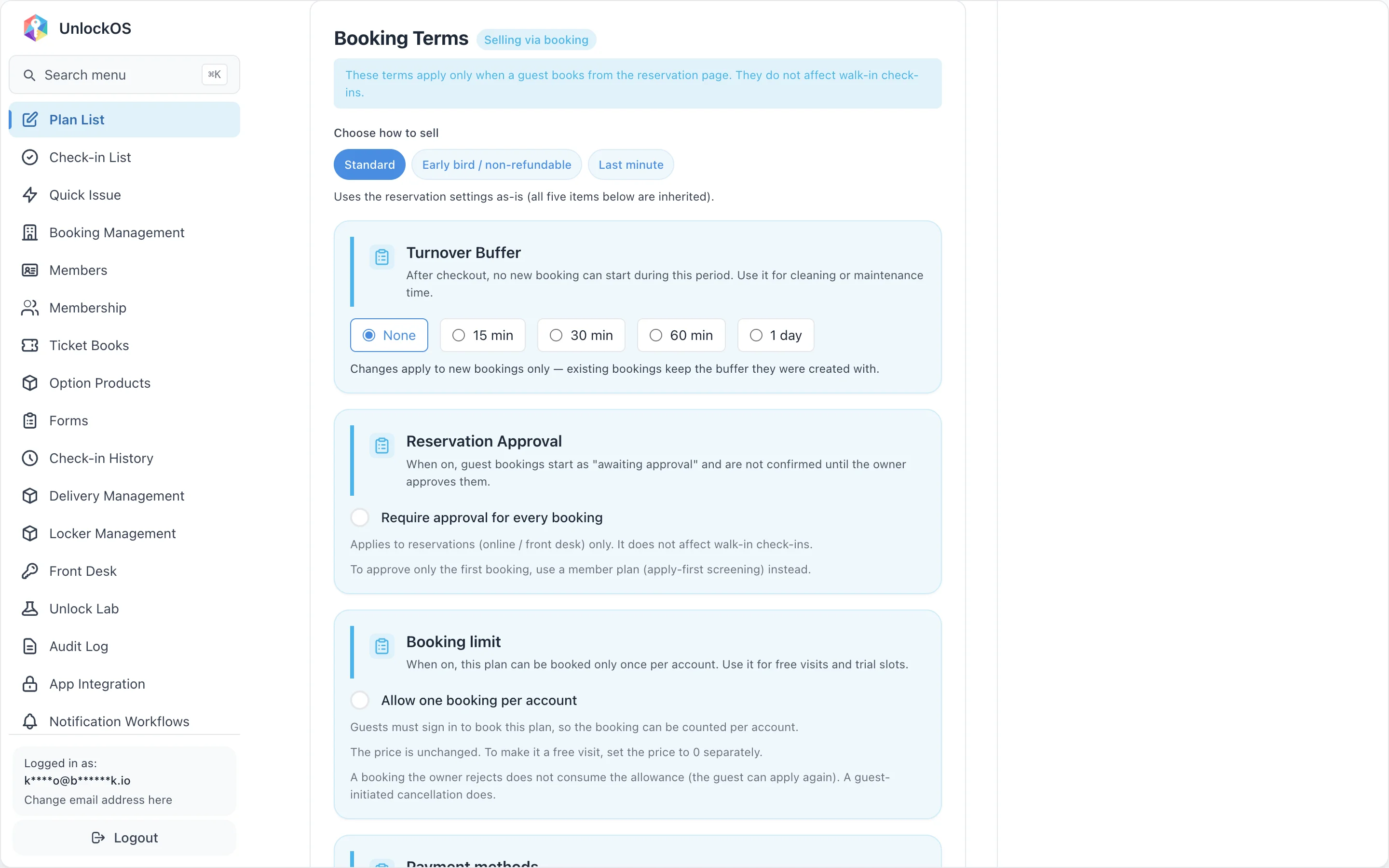
In the admin screen, these live in the "Booking Terms" card at the bottom of the page, separate from the plan-type settings above. Settings in this card apply only to bookings (when a guest applies through the booking screen) — they do not affect walk-in check-ins.
| On-screen label | Column on plans |
What "inherited" means |
|---|---|---|
| Cancellation policy | plans.booking_cancellation_policy |
Inherits the reservation config's reservation_configs.cancellation_policy |
| How far ahead guests can book | plans.booking_max_advance_days |
Inherits reservation_configs.max_advance_days (0 = no limit) |
| How late a booking can be made (lead time) | plans.booking_min_advance_hours |
Inherits reservation_configs.min_advance_hours (0 = no limit) |
| How late a change can be made (modify cutoff) | plans.booking_modify_cutoff_hours |
Inherits reservation_configs.modify_cutoff_hours (default 24h, 0 = editable until start time). See Edit reservation for how guests use this |
| Longest single booking | plans.booking_max_duration_minutes |
Inherits reservation_configs.max_booking_duration_minutes (accommodation plans are exempt) |
This card appears on every plan type's edit screen, but it only matters for the four plan types that can be sold via a booking URL (Accommodation, Hourly, Time Slot Booking, Flat + Overtime). Daily Flat and One-Time plans are never linked to a reservation config, so overriding these fields on them has no effect. See Supported Plan Types in the Booking Management help.
Choosing How to Sell (Presets)
At the top of the "Booking Terms" card is a "Choose how to sell" preset picker. Instead of setting all five fields one by one, pick the intent and the picker fills them in for you.
| Preset | What it sets |
|---|---|
| Standard | All five fields inherited (use the reservation config's terms as-is) |
| Early bird / non-refundable | Cancellation policy set to always 100% + must be booked at least 30 days ahead (lead time = 720 hours) |
| Last minute | Cancellation policy set to always 100% + bookable only up to tomorrow (max advance days = 1) |
| (Custom) | Doesn't match any preset above. Not a button you click — it is shown automatically based on the current five values |
Presets are a shortcut, not a lock. After applying one, you can still edit any of the five rows below individually. Changing even one value automatically switches the display to "Custom." If the five values later match a preset again, that preset is shown as selected again. The preset's name is never saved anywhere — it is always derived from the current five values.
"Last minute" has no same-day-only option. The "how far ahead guests can book" column already means "0 = no limit," and that meaning can't be changed without breaking every other use of the column, so there is no value that means "today only." The preset uses the next best option, "bookable up to tomorrow" (max advance days = 1).
The Five Inherited Rows (Overriding a Single Plan)
Below the preset picker, each of the five fields is shown as its own row with its current value.
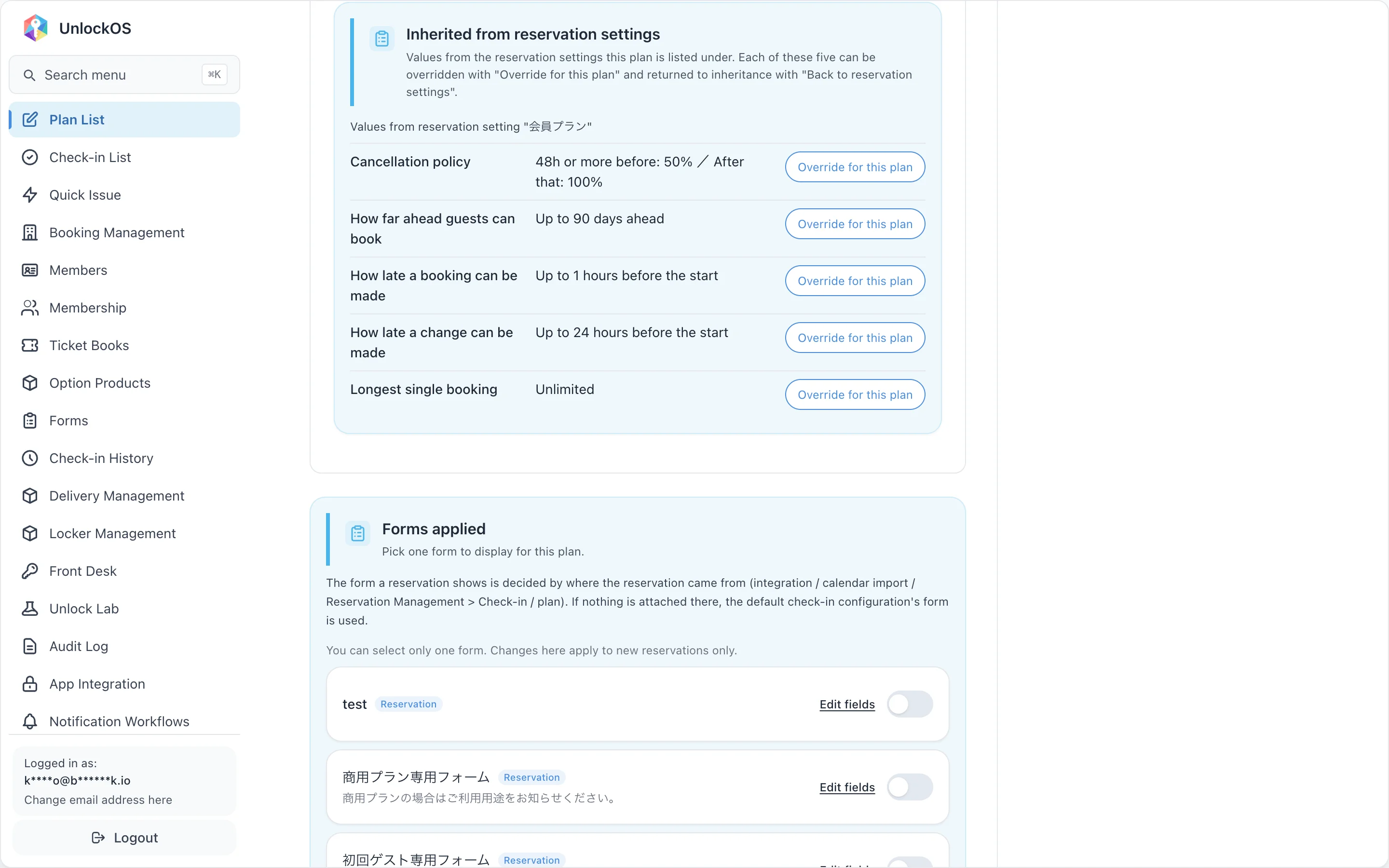
| What you see | Meaning |
|---|---|
| The value itself (e.g. "Up to 30 days ahead") | The value inherited from the reservation config. This plan has not overridden the field |
| "Override for this plan" button | Click to switch just this field to a value specific to this plan, revealing an input |
| "Overridden for this plan" badge | Shown on a field that is overridden. The inherited value is no longer shown, so it's always clear which value is in effect |
| "Back to reservation settings" button | Cancels the override and goes back to inheriting |
- The two hour-based fields (lead time, modify cutoff) show a day-equivalent (e.g. "= 30 days") next to the input whenever the value divides evenly by 24
- If this plan is mapped under more than one reservation config and their values differ, overriding the field applies your new value to bookings through either config — a warning explains this before you save
- A plan not yet mapped to any reservation config shows "—" with a note that the value is decided once it's added to one
Usage Badges
The headings of both cards on the plan edit screen show badges, driven by real data, indicating where this plan is actually used (nothing is shown if it isn't used anywhere).
| Badge | Shown on | Meaning |
|---|---|---|
| Selling via booking | Booking Terms | This plan is mapped under a Room Type × Plan mapping in at least one reservation config |
| Used for walk-ins | Pricing & Availability | This plan is used by at least one check-in configuration |
| Linked to a membership plan | Pricing & Availability | This plan is registered as a target plan of at least one membership plan |
Take extra care with a plan showing "Used for walk-ins." Changing its available days or pricing affects walk-in guests as well as bookings. The "Pricing & Availability" card shows an extra warning for plans in this state.
Form for This Plan
You can attach a guest information form to a plan. When a form is attached, guests who book this plan fill it in at booking time — during the step just before they receive their key.
Where to find the setting
The "Form" section is at the bottom of the plan editor. The dropdown lists any reservation-scope forms you have created on the Forms page.
When the form appears
| Check-in path | When the form appears |
|---|---|
| Booking / Go app self-check-in | At booking (just before key delivery) |
| Host check-in URL / kiosk | At check-in (via the default check-in configuration form — set separately) |
When a form is attached to this plan, guests see it during the Booking flow when they complete their reservation. Because the form is answered at booking, it is not shown again at check-in for that same reservation.
Note: The form shown at your check-in URL or kiosk is controlled separately under Reservation Management → Check-in tab → default configuration. Plan-level forms and check-in-URL forms are independent settings.
Attaching a form
- Create a reservation-scope form on the Forms page first
- Open this plan editor
- Select the form from the "Form" dropdown at the bottom of the page
- Click Save Plan
Removing a form
Select "None" from the dropdown and click Save Plan. After removal, no form is shown during the Booking flow for this plan.
Members Only
Turn on Members only in the "Pricing & Availability" card and people who are not members can neither book nor check in (walk in) with this plan.
| The plan | Who can use it |
|---|---|
| Members only is off (default) | Anyone |
| Members only is on, and the plan is a target plan of a membership plan | Members of that membership plan only |
| Members only is on, and the plan is not a target plan of any membership plan | Any member of this facility |
- Always turn this on for a members' entrance that lets people in without paying (for example, a members-only key pickup whose check-in configuration has payment set to "none"). Left off, anyone who knows its QR code or URL can get in without paying, member or not
- Choosing a plan as a membership plan's target plan does not make it members only. Target plans are the plans members can use free or at a discount; non-members can still use them at the normal price (some facilities make a visitor plan free for members)
- Deactivating a membership plan that targets this plan does not widen Members only. Members of that membership plan can still use it while their subscription lasts, and members of other membership plans still cannot. To change who can use it, change the membership plans' target plans
- A member who opens the app from LINE is not treated as a member until they link LINE to their member account (see LINE Integration Settings)
What Guests See
A members-only plan is listed, not hidden, for people who cannot use it. Knowing that membership would unlock it is itself a reason to join.
| Who is looking | What they see |
|---|---|
| A member who can use it | A "Members only" badge; they can select it as usual |
| A non-member, or someone not logged in | A "Members only" badge and "Available to members only", shown as a disabled card. Someone not logged in also sees the member login prompt |
- This applies to the booking page's plan list, the check-in plan picker, the stay-service screen, the member page's "Other reservation plans", and the price list on the facility page (badge only)
- A plan share link does not open the plan for someone who cannot use it; they see a notice that the plan is for members
- When every plan in the check-in picker is members only and unavailable, a notice asks members to log in (if they opened it from LINE, to link their account from "Members" at the top of the screen) instead of showing an empty list
- If membership could not be checked at that moment, the plan is shown as usual rather than disabled. It is checked again on confirm, and a non-member sees "This plan is for members only." If the check itself fails, a different message asks them to try again
- On the check-in and stay-service screens, a plan refused as members only on confirm sends the guest back to the plan picker with that plan disabled
Reservation Approval
The "Reservation Approval" section of the plan editor puts bookings on this plan behind owner approval.
When it is on, a guest's booking first becomes "pending approval" and is not confirmed until the owner approves it.
| Item | Detail |
|---|---|
| Checkbox | Require approval for every booking |
| Scope | Bookings only (online / front desk). Walk-in check-ins are unaffected |
| Approving only the first time | Not possible with this toggle — use a membership plan (apply-first screening) instead |
This is a separate axis from member-tier visibility
"Reservation Approval" is independent of the member-tier visibility settings above. A member-only plan can also require approval.
Where pending bookings are handled
Approve / reject is available in two places.
- The Responses tab of the Forms screen — review the submitted answers alongside the request. See Reservation Approvals
- The reservation detail panel — act directly on the reservation. Reservations with no form response (for example a plan with no form attached) never appear in the Responses tab, so this is the only place they can be handled. See Reservation Creation and Editing
Payment Methods
"Payment Methods" on the plan editor controls which payment methods this plan accepts. There are three: Online Payment, Pay On Site, and Bank Transfer — and you can select any combination of them with checkboxes.
| Method | Description | When the key is released |
|---|---|---|
| Online Payment | Guest pays by card at booking time | On payment completion |
| Pay On Site | Received directly at the facility (cash, on-account, etc.) | Released before payment — reaching the front desk is itself part of entering the building |
| Bank Transfer | Guest transfers to a specified account | After the payment is confirmed |
Selecting two or more lets the guest choose at booking
With only one method selected, the reservation is fixed to that method (the guest sees no choice). Select two or more and the guest picks a payment method during the confirmation step of booking.
The last remaining method cannot be unchecked. A plan cannot accept nothing, so once only one method is left, its checkbox is disabled.
Why "Pay On Site" and "Bank Transfer" differ (when the key is released)
Both are "non-online" methods, but they are opposite in when the key is released.
- Pay On Site releases the key even before payment, because reaching the front desk is itself part of entering the building — this holds whether the facility is staffed or unattended. A reservation paid this way stays "Unpaid" in the reservation list. When you receive the payment, record it with the "Received on-site" button in the reservation detail (see Reservation Creation and Editing)
- Bank Transfer withholds the key until the payment is recorded, because releasing it first removes the guest's reason to pay. The bank transfer invoice is sent automatically when the reservation is confirmed, and the reservation is marked as paid automatically once the transfer arrives. You can check the sending status or resend it from the Invoice panel in the reservation detail (see Reservation Creation and Editing)
Because of this difference, the two are kept as separate checkboxes rather than combined into a single "non-online" option.
Plans with manual approval are online-only
A plan with "Require approval for every booking" (above) turned on cannot accept anything but Online Payment, because payment after approval only works through card payment. Turning approval on automatically clears any Pay On Site / Bank Transfer selections and switches back to Online Payment only.
Editing the guest-facing label
When Pay On Site or Bank Transfer is selected, you can edit the label and description shown to the guest at booking (via the pencil icon). Leaving it blank uses a default wording that adapts to the method chosen. Changing this label does not change the actual behavior (such as when the key is released) — it only changes how it's displayed.
Booking Limit (once per account)
The "Booking limit" section of the plan editor restricts this plan to one booking per account. Free visits and trial slots are the most common use, but this setting does not change the price — a paid "buy it once" trial is equally valid.
| Item | Detail |
|---|---|
| Checkbox | Allow one booking per account |
| Sign-in | Required. A booking cannot be limited to once unless we can count who used it, so anonymous bookings are refused |
| Price | Unchanged. To make it a free visit, set the price to 0 separately (a 30-minute or full-day slot is expressed with the plan-type settings) |
| Counting | Per plan. Two limited plans give one booking each |
When the allowance is consumed
| Event | Allowance |
|---|---|
| The booking is created | Consumed (with approval on, it is consumed as soon as the request is pending) |
| The owner rejects it | Returned — the applicant is not at fault, so they can apply again |
| The guest cancels it themselves | Not returned — otherwise cancelling repeatedly would hand out unlimited bookings |
Caution on paid plans: because a guest-initiated cancellation does not return the allowance, a guest can end up refunded yet unable to book again. Use this mainly where a retry costs the facility nothing — a free visit being the obvious case.
Independent of approval
"Booking limit" and "Reservation Approval" are separate settings. Whether a booking needs owner approval, and whether an ID document is required (an image field on the booking form), are configured on their own.
Duplicate prevention is not absolute. An account is an email address, so a new address is a new applicant. What this stops is an unlimited loop on one account — not one determined person coming back.
Buttons
| Button | Description |
|---|---|
| Cancel | Discard changes and return to list |
| Save Plan | Save the entered settings |
Simulation Feature
Use the simulation panel on the right side of the screen to see real-time pricing calculations based on your settings.
| Field | Description |
|---|---|
| Check-in Time | Start time for simulation |
| Check-out Time | End time for simulation |
| Usage Day/Holiday | Simulate as weekday, weekend, or holiday |
| Total Amount | Calculated total amount |
| Fee Breakdown | Details of base fee, overtime, tax, etc. |
The simulation also detects automatically whether the date you enter is a public holiday, using the facility's country (facilities with no country configured never resolve a date as a holiday).
FAQ
Q: Can I change the plan type later?
A: No, once saved, the plan type cannot be changed. Please create a new plan instead.
Q: I set rate tiers for hourly billing but they're not being applied
A: Check that the "Weekday", "Weekend", and "Holiday" checkboxes are correctly set for your rate tiers. Holidays are detected automatically, so on a public holiday only tiers marked "Holiday" apply — a tier marked only "Weekday" will not apply on a holiday.
Q: What happens if night pack overlaps with rate tiers?
A: An error will be displayed. Please ensure time periods do not overlap.
Q: Which rate applies when a Saturday is also a public holiday?
A: The Holiday rate. The priority order is Holiday > Day Before Holiday > Friday > Saturday > Sunday > Weekend > Weekday. See How Day-of-Week and Holiday Rates Are Chosen.
Q: I configured Holiday / Day Before Holiday rates but they are not applied
A: Check the following.
- Is the facility's "Country" set? Facilities with no country configured never detect holidays
- Is "Enable this setting" ON for that day type?
- Does the date match a higher-priority day type instead? (For example, a date that is itself a holiday uses Holiday even if the next day is also a holiday)
- For Time Slot Booking plans, the Holiday tab is skipped unless at least one of its slots is enabled
Q: In an accommodation plan, some days are billed as 0
A: "Enable this setting" is probably OFF for that day type. In accommodation plans, nights of a disabled day type do not fall back to the weekday rate — they are billed as 0. Enable every day type you might hit and enter your normal rate.
Q: What happens when only one night of a multi-night stay is a holiday?
A: Only that night is billed at the holiday rate. The other nights use their own day types. A stay never becomes "all holiday".
Q: Does the total shown on the booking confirmation match the actual charge?
A: Yes. The total a guest sees at booking is produced by the same calculation as the charge, including day-specific rates, holidays, and per-night classification.
Q: The day of week is off for bookings starting late at night (00:00–09:00)
A: It is no longer off — the day is resolved from the civil date in the facility's timezone. Previously it came from server time (UTC), so bookings starting between 00:00 and 09:00 JST were classified under the previous day. If the day still looks wrong, check the facility's timezone setting.
Q: When does "Maximum Daily Fee" reset?
A: On the civil date in the facility's timezone (for example, 00:00–24:00 JST for a Japan-based facility). It previously reset on server time (UTC), which for a JST facility effectively moved the boundary to 09:00 JST and could apply the cap twice. This applies the same way to both the Hourly Billing Plan and the Fixed Time + Overtime Plan.
Q: Can I charge a different rate during a specific period, such as high season?
A: Yes. Create a date class under Special Dates & Seasons on the Settings → "Special Dates" tab, and this plan editor gains a tab for it (a per-minute rate row on the Hourly Billing Plan). Special dates and seasons take priority over holidays, weekends and days of the week. See Special Dates & Seasons.
Q: Can I use different time-band rates (morning, evening) during a season?
A: Not on the Hourly Billing Plan. Only the basic per-minute rate can be overridden per class. Split the plan into "Regular" and "High Season" versions and switch which one is published by hand — there is no automatic date-based switching.
Q: How is tax calculated?
A: Tax is calculated based on the tax rate and calculation type (exclusive/inclusive/non-taxable) set in Basic Settings.
Q: Where do I configure the maximum booking duration?
A: By default it lives on the Reservation Config (reservation_configs.max_booking_duration_minutes). Because check-in does not cap actual stay length, placing it on plans by default would mislead operators. The default cap is booking-only, so it's grouped with the other booking-window settings. To change it for just this plan, override it from Booking Terms (Per-Plan Overrides) on this plan's edit screen. See Reservation Config help for the config-level setting and its UX behaviour.
Q: I selected "Pay On Site" and the key is issued even though the guest hasn't paid yet — is that correct?
A: Yes, that's by design. Reaching the front desk is itself part of entering the building, so Pay On Site releases the key even before payment — the same for staffed and unattended facilities. An unpaid reservation stays "Unpaid" in the list; when you receive the payment, record it with the "Received on-site" button in the reservation detail. Bank Transfer works the opposite way — no key until the payment is recorded.
Q: What changes if I select two or more payment methods?
A: The guest gets to choose among them during the confirmation step of booking. With only one selected, the guest sees no choice and the reservation is fixed to that method.
Q: I turned on "Require approval for every booking" — what happened to my Pay On Site / Bank Transfer selections?
A: They're cleared automatically, leaving only Online Payment selected, because payment after approval only works through card payment. Turning approval back off does not automatically restore your previous selections.
Related Pages
- Plan List
- Check-in Configuration (form timing and path-specific settings)
- Form Management (creating and editing forms)
- Reservation Approvals (reviewing, approving, and rejecting pending reservations)
- Basic Settings (timezone, business hours, holiday settings)
- Special Dates & Seasons (per-class rates for high season and similar)
- Sales Blocks (stop selling a plan for specific dates)
- Time Slot Booking Plan Configuration
- Hourly Week Grid Configuration (per-day business hours)
Last updated: 2026-10-01 - Added what guests see for members-only plans (shown as disabled cards to people who cannot use them) (#4384)